
How to Connect iPhone to CarPlay: A Complete Step-by-Step Guide

Transform your driving experience by seamlessly integrating your iPhone with your car's infotainment system using Apple CarPlay. This comprehensive guide covers all connection methods and troubleshooting tips.
What You'll Need Before Getting Started
An iPhone with iOS 7.1 or later (iOS 13+ recommended for full functionality)
A vehicle equipped with CarPlay compatibility
Apple-certified USB cable (for wired connections)
Ensure Siri is enabled on your iPhone

Method 1: Wired CarPlay Connection via USB
This is the most common and reliable connection method:
Start your vehicle's engine - CarPlay typically requires the engine to be running
Locate your vehicle's USB port - Often marked with a CarPlay or smartphone icon
Connect your iPhone using an Apple-certified USB cable
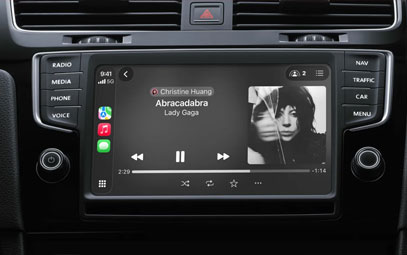
Wait for connection - Your car's display should automatically detect and launch CarPlay
Pro Tip: Always use genuine Apple cables for optimal performance and reliability. Third-party cables may cause connection issues.
Method 2: Wireless CarPlay Connection
For vehicles with wireless CarPlay capability:
Initial Setup (Wired First)
Connect your iPhone via USB as described in Method 1
When prompted on your iPhone, select "Enable Wireless CarPlay"
Disconnect the USB cable when instructed
Subsequent Connections
Ensure your vehicle is in wireless or Bluetooth mode
On your iPhone, go to Settings > Wi-Fi and ensure it's enabled
Select the CarPlay network (usually named after your vehicle)
Verify "Auto-Join" is enabled for seamless future connections
Navigate to Settings > General > CarPlay and select your vehicle
Method 3: Voice Command Activation
For vehicles with wireless-only CarPlay:
Press and hold the voice command button on your steering wheel
Ensure your car stereo is in wireless or Bluetooth mode
Complete the Wi-Fi setup process as described above
Troubleshooting Common Connection Issues
CarPlay Home Screen Doesn't Appear
Try manually selecting the CarPlay icon on your vehicle's display
Restart both your iPhone and your vehicle's infotainment system
Check for iOS updates on your iPhone and firmware updates for your vehicle
Connection Drops Frequently
Inspect your USB cable for damage and try a different cable
Reset network settings on your iPhone (Settings > General > Reset)
Consult your vehicle's manual for specific CarPlay settings
Special Considerations for Electric Vehicles
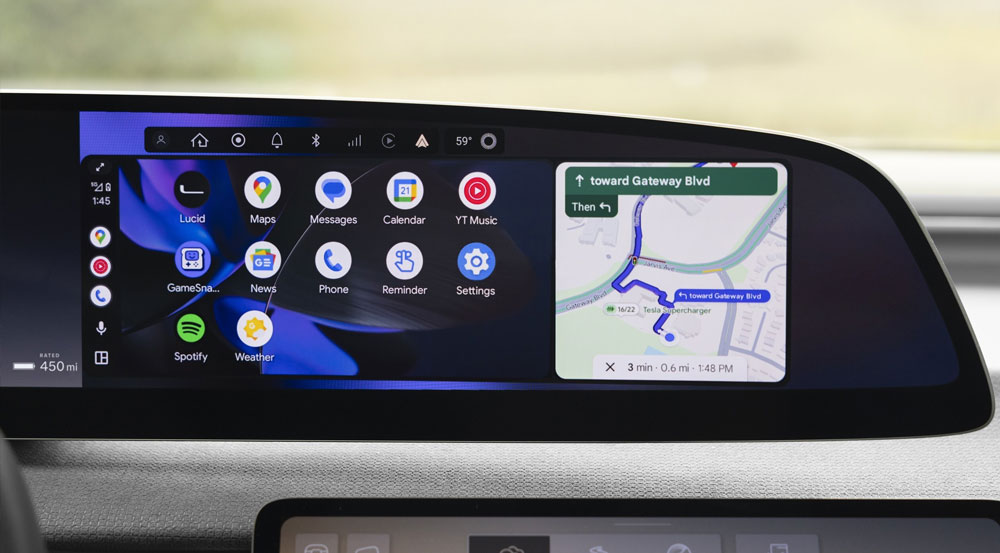
For EV owners: After connecting to CarPlay, use the Maps app to identify your vehicle type for EV-specific routing. This enables:
Battery-optimized navigation routes
Charging station locations and availability
Estimated charging time calculations
Range assurance features
To set up: Open Maps > Tap your profile picture > Vehicles > Add Vehicle
Optimizing Your CarPlay Experience
Organize your CarPlay apps directly from your iPhone (Settings > General > CarPlay)
Enable Driving Focus to minimize distractions while connected
Use Siri voice commands for safe, hands-free operation
Keep your iOS updated for the latest CarPlay features and security patches
Still Having Trouble?
Consult your vehicle's owner's manual for manufacturer-specific instructions, as CarPlay implementation varies between automakers. Different models of Honda, Ford, BMW, and other brands may have unique connection processes.
You might also like


- None
- CONTACT INFO
-
Address:B920 Yousong Tech Building, Donghuan 1st Road, Longhua District, Shenzhen China 518131
Email:sales@kremersino.com
Skype:2418489304@qq.com
Telegram:@MichaelKremersino
WhatsApp:+86 18565773365
- ABOUT US
- Company Profile FAQ Video Technology
